A Revit model checker — Autodesk's own Model Checker, or the third-party layer most offices add on top of it — automates the comparison between a model and a written rule: does this door have a fire rating, does this room have a department parameter, is this wall assigned a real type instead of staying "Basic Wall." What it doesn't automate is knowing which of those rules actually matter for this project, or judging whether a flagged element is really wrong. That part stays a person's job. Everyone wants the report. Nobody wants to build the checkset that makes that report worth reading. One of our own projects spent 148 hours — about six and a half days — on nothing but generating a dataset before any model ever got built, because the unglamorous 80% is usually where the real advantage sits. Writing and testing forty rules against edge cases is slower and less interesting than clicking run, and it's the only part that decides whether the report means anything.
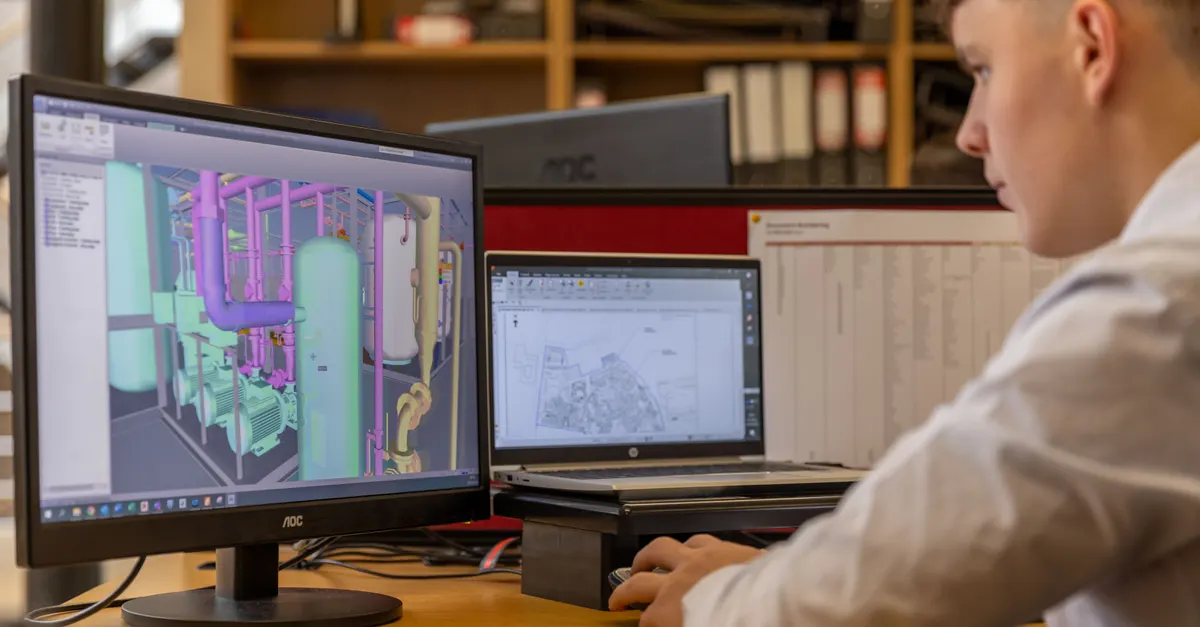

What a Revit model checker actually checks
Revit's native Model Checker is closer to a spellchecker for the model's internal bookkeeping than a complete BIM quality control tool. It evaluates the software's own internal logic — are parameters filled in, does naming match a pattern, was the right type loaded — not the quality or completeness of the design itself.
That means a good checkset can instantly say which rooms are missing a department parameter or which doors lack a fire rating. It can't say a wall is structurally wrong if its label is perfectly correct, and it can't judge whether a deviation from standard is actually a problem or a justified exception. That distinction decides how much a clean report is actually worth trusting.

Get the model checkable before you check it
Running a checkset against a model that's already a mess just produces a long list of warnings nobody has time to act on. The same clutter that wrecks a Revit library — duplicate types, orphaned parameters, downloaded families nobody ever reviewed — is exactly what fills a checker's report with noise instead of real findings.
A basic cleanup — Purge Unused, an object-styles pass, consistent naming — before the first checkset run is the difference between a report with twenty actionable items and one with three hundred that nobody opens.

Build checksets instead of trusting the defaults
Autodesk's Model Checker Configurator lets you build rules of your own, and pre-built checksets from various sources, including universities and large institutions, are available as a starting point. But an imported checkset rarely matches exactly what your office needs. It's usually a starting point, not the answer.
Building one is a skill of its own, not a handful of clicks. Three things make the biggest difference:
- Start on a small test model, not the live project — a bad rule against the real model can generate hundreds of false flags at once.
- Know how Revit stores data, not how it displays it — lengths are stored in decimal feet, not whatever unit shows on screen, and a sloppy numeric comparison breaks silently.
- Copy and modify an existing checkset instead of starting from a blank one; most of the useful rules have already been written by someone else.

Run the check, then triage every flag
The first time we ran a checkset against a mid-size hospital model, the report came back with 340 flagged elements. Every one of them traced back to a single family loaded with the wrong parameter type.
Every flag is one of three things: a real violation, a false positive because the checker doesn't understand context, or a judgment call that needs a person. Going straight to fixing everything without that sort wastes time on the wrong things and buries the flags that actually matter.
Once something's fixed, rerun the check to confirm it, and keep that rule for next time — nothing found once should have to be found twice.

When the native checker isn't enough
Model Checker only reads what Revit itself has stored. Cross-discipline clash detection, physical-geometry checks, or exporting data to a spreadsheet for a parameter audit all fall outside that scope — tools like Solibri Model Checker, Dynamo scripts, and add-ins like Ideate BIMLink exist to close those specific gaps.
The usual order is to confirm data and naming are correct with the native checker first, then move on to clash detection and geometry-level review. A clash report against a model whose basic parameters are still wrong isn't worth running yet.

Turn it into a cadence, not a one-time sweep
A one-time check buys a few weeks, not permanence. Models drift back toward mess under deadline pressure the same way libraries do. The same quarterly cadence that makes sense for a library audit makes sense for rerunning a checkset.
Run regularly, the output stops being a scattered list and becomes worth turning into a dashboard the whole team can actually track — a trend showing which projects are improving and which keep drifting back to the same problems, not just a snapshot of today.

When outside help is actually worth it
If it's one project, a handful of rules cover it, and Autodesk's free tool already does the job, nobody needs to be hired: spend an afternoon in the Model Checker Configurator instead. This is exactly the point where bringing in a consultant is overkill.
Outside help makes sense when a checkset needs to run across several projects over years, when the standard itself isn't written down yet so there's nothing to encode, or when the team wants results feeding into a real automation flow instead of a spreadsheet nobody opens. Our BIM & Revit content work is usually brought in for exactly that gap, not to replace Autodesk's free tool.
A Revit model checker makes the work faster. It doesn't make the judgment optional. Its report is only as trustworthy as the checkset behind it, and building that checkset is the part nobody wants to do first.
Related reading
FAQ
Is Autodesk's Model Checker free?
Yes. It's free for licensed Revit users and downloadable from manage.autodesk.com or through Autodesk Access. Versions cover Revit 2022 through 2026.
What's the difference between Model Checker and Model Checker Configurator?
Model Checker is the tool that runs a checkset against your model and produces the report. Configurator is the separate tool used to build your own custom rules instead of relying only on pre-built checksets.
Does a Revit model checker replace clash detection?
No. Model Checker evaluates data and parameters stored inside Revit itself, not physical geometry across disciplines. Clash detection is handled by tools like Navisworks or Solibri, usually run after the model's own data is already clean.
Does a Revit model checker verify building code compliance?
Not directly. A good checkset can confirm the parameter a code check depends on exists and is filled in, but judging actual compliance still requires human review.
Where do we start building a custom checkset?
Start from an existing checkset and modify it against a small test model, not the live project. Knowing how Revit stores data — lengths as decimal feet, for example — prevents most of the common mistakes in writing a new rule.
Do we need to hire someone to set up Revit QA/QC?
Not always. If it's one project and a handful of rules cover it, try Autodesk's free tool first. Outside help is worth it when a checkset needs to run across several projects over years, or when the output needs to become a real dashboard.
Does every flag in a model checker report mean the model is broken?
No. Every flag is one of three things: a real violation, a false positive because the checker doesn't understand project context, or a justified exception that needs a human call. Sorting those three before fixing anything saves time.
How often should a Revit model actually be checked?
Quarterly is a reasonable default for most active projects, the same cadence that makes sense for a library audit. Waiting for a problem to show up as a broken schedule means waiting longer than necessary.